PDF Toolbox
wydevteamProductivity
4.415.00 Reviews
- Version
- 1.0.9
- Installs
- 500.00K
- Age Rating
- Everyone
Screenshots
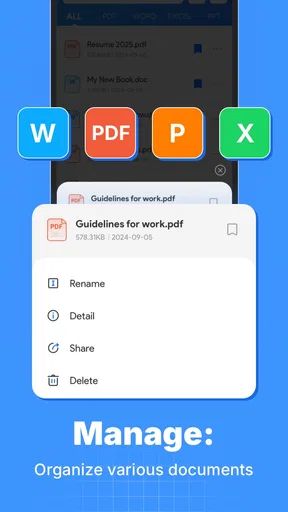
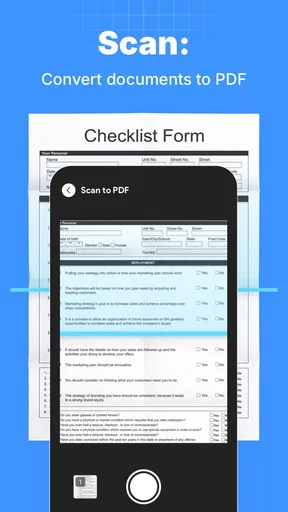
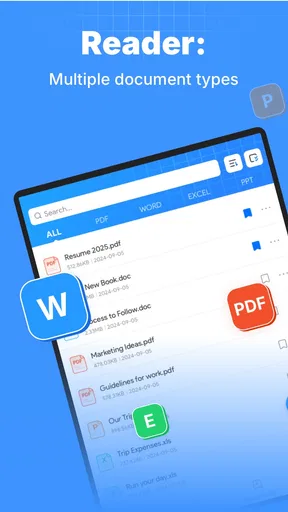
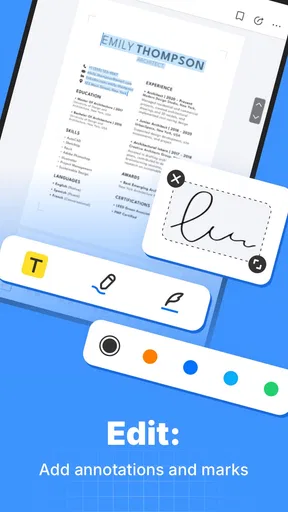
Our Review of PDF Toolbox
 Analysis by Appyee
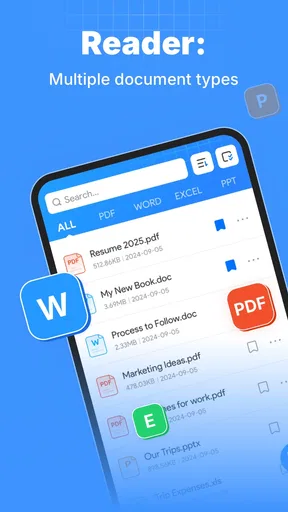
When I decide whether a PDF app deserves a place on my phone, I start with a practical question: am I just opening documents, or do I need to understand them and come back to specific details? PDF Toolbox is aimed at the second kind of work. I find it most appealing for focused reading and annotation, rather than as a catch-all tool for creating, storing, and managing every kind of file.
That distinction helps set expectations. If a document only needs a quick glance, the viewer already built into a device may be enough. If I need to review instructions, keep track of questions, or make a long handout easier to revisit, a dedicated PDF app has a clearer purpose. PDF Toolbox is free, made by wydevteam, and sits in the productivity category. Its broad Everyone age rating makes it suitable for a wide range of readers, though the deciding factor is really how often you work with PDFs.
The app has over half a million installs and a 4.4 average from around five thousand ratings. I treat that as useful context, not a substitute for trying it with the kinds of documents I actually handle. Its current release is version 1.0.9, and it runs on Android 7.0 or later.
Choosing a PDF app for the work you actually do
When I choose a PDF app, I first separate reading from the rest of the document work: finding files, editing them, and sharing them can call for different tools. I’d test any reader against a real document I expect to revisit, then ask whether its marks help me locate decisions or questions later. That practical test makes it easier to judge where a focused app earns its place—and where a broader alternative may be more useful.
A focused workspace instead of an overloaded office suite
Many people already have several ways to open a PDF. A phone may display one through a browser, a messaging app, cloud storage, or a general document viewer. The problem is that opening a file is not the same as working with it comfortably. Reading long pages, locating important passages, and leaving notes often feels secondary in those tools.
PDF Toolbox takes a more focused position. Its purpose is to make documents easier to read, scan, and annotate, and that focus is apparent in the way I think about using it. Rather than treating a PDF as a file that merely needs to be displayed, it treats it as something I may need to inspect and return to later.
That distinction matters for study notes, application forms, manuals, meeting documents, invoices, and reference material. I do not need a large suite for those jobs. I need a calm reading surface and a sensible way to mark information without losing my place.
The scanning advantage is more important than it sounds
Scanning a document is different from reading every line. When I scan, I am looking for headings, names, dates, requirements, repeated terms, and the section that answers a specific question. A PDF tool that supports this behavior can save more time than one that simply offers a long list of technical commands.
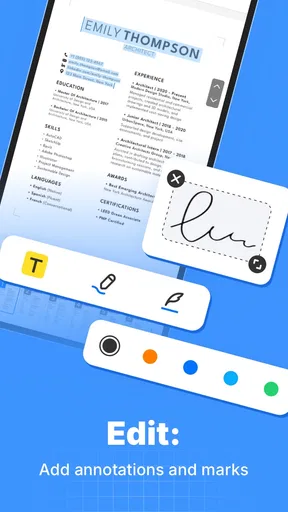
My preferred workflow is to first move through the document quickly, then slow down only where the content deserves attention. I mark the passages that matter, add a short note when the reason is not obvious, and continue. This prevents the common mistake of highlighting almost everything, which makes later review nearly as difficult as starting from the beginning.
A useful habit is to give each annotation a job. I use one mark for a fact I need to remember, another for a question, and a note for an action I need to take. Even if the document itself does not provide a complete knowledge-management system, this simple discipline makes the app more valuable because the marks become a map rather than decoration.
Annotation is most helpful when it supports a later decision
There is a difference between marking a PDF and actually using those marks. For example, when reviewing a rental document, I would not highlight every paragraph. I would identify the payment terms, renewal language, responsibilities, and anything I need to ask about. On a course handout, I would mark definitions and add questions beside unclear explanations.
This is where PDF Toolbox has a practical advantage over a basic viewer. The app encourages me to interact with the document while I read, not only to look at it. That makes it a better fit for people who return to the same files and need to remember why a passage mattered.
The best results come from treating annotations as future reminders, not as visual decoration. A short, specific note such as “check this requirement” is usually more useful than a large block of color with no explanation.
A realistic everyday scenario
Imagine receiving a long PDF from a school, workplace, landlord, or service provider while away from a computer. I would open it in PDF Toolbox, scan the headings first, locate the sections related to deadlines and obligations, and annotate only those passages. If a clause needs clarification, I would add a note immediately instead of trusting myself to remember the page later.
That workflow is especially useful when the document arrives through a phone-based conversation. I can read while discussing it, mark the points that need follow-up, and return to the file after the call. A general viewer may be enough for a quick glance, but a dedicated annotation-oriented app is more suitable when the document is part of an ongoing task.
Where it compares well with familiar alternatives
The usual alternative is a browser or built-in file viewer. Those options are convenient and often open a document instantly, but they tend to be designed for access rather than careful review. If I only need to confirm that a file opens, I would not install a separate tool. If I need to study or annotate it, PDF Toolbox has a clearer reason to exist.
Another alternative is a full office suite. Office apps can be powerful, but that power often comes with a busier interface and a broader set of tools than a PDF reader needs. For someone who mostly works with fixed-layout documents, a specialized app can feel less distracting.
Cloud-storage applications are useful when the main challenge is finding files across devices. They may be the better choice if organization, synchronization, or team access is the priority. PDF Toolbox is more appealing when the immediate problem is understanding and marking the document in front of me.
Dedicated professional PDF software may still be preferable for advanced document production, complex form workflows, or a workplace that depends on specialized controls. I would not choose this app simply because it has “PDF” in its name; I would choose it when reading and annotation are the central tasks.
The meaningful limitation: focus can become a boundary
The same simplicity that makes PDF Toolbox approachable can feel limiting for users expecting a complete document-management environment. If your work involves heavy editing, elaborate conversions, extensive collaboration, or a large archive that must be organized in detail, you may quickly want another tool beside it.
I also think users should separate three needs before installing it: viewing, annotating, and managing documents. A focused PDF reader can handle the first two well enough for ordinary use, while the third may depend more on the storage and file-management tools already on the device. This is not a flaw in the app’s purpose, but it is an important trade-off.
There is also a learning curve in annotation discipline. The app can make marking easier, but it cannot decide what deserves a note. New users may highlight too much or create notes they never revisit. I recommend starting with one document and a clear goal, such as extracting action items or preparing questions, rather than marking randomly.
Who should use it, and who should skip it
I would recommend PDF Toolbox to students, readers, office workers, freelancers, and anyone who regularly receives documents that need more attention than a quick glance. It is particularly suitable for people who prefer working on a phone or tablet and want a dedicated place for reading and annotation.
It can also help occasional users who are tired of opening a PDF in whichever app happens to receive it. A consistent tool is valuable when documents arrive from different sources and the user wants the same reading routine each time.
I would be more cautious about recommending it to someone whose main requirement is document creation or advanced file administration. If you need a complete office workflow, a specialized professional editor, or a collaboration-centered platform, another option may be a better primary tool. PDF Toolbox can still serve as a reader, but it should not be mistaken for an all-purpose replacement.
Compatibility and practical expectations
The app works on Android devices running version 7.0 or later, which covers a wide range of phones and tablets. Its current release is version 1.0.9, and because the product is relatively young, I would approach it as a focused tool that may continue to mature rather than as a decades-old standard with every edge case already solved.
That expectation affects how I would use it. For routine reading, scanning, and notes, I would make it part of my everyday workflow. For an important professional document, I would still keep the original file safely stored and verify the final result in the environment where it will ultimately be submitted or shared.
The free price makes experimentation easy. I can install it, try it with a few different documents, and decide whether its reading style fits me without committing money first. The Everyone age rating also makes it suitable for a broad audience, though the usefulness naturally depends more on the user’s document needs than on age.
Small workflow choices that improve the experience
First, I recommend scanning the document before annotating it. A quick pass reveals its structure and prevents me from filling the opening pages with marks while missing the sections that matter later.
Second, I would use annotations to reduce future reading time. Mark deadlines, definitions, decisions, and unresolved questions, but leave ordinary supporting sentences alone. When I return to the document, the marked areas should tell me what changed my understanding or what still needs action.
Third, I would create a short review step after finishing. Looking back over the annotations immediately helps catch vague notes and turns them into clear tasks. “Important” is not very useful; “ask whether this fee applies at renewal” is much better.
Finally, I would avoid using the app as the only place where important information exists. An annotation is helpful, but a critical deadline should also appear in the calendar or task system I already trust. This keeps the PDF useful as evidence while moving the actual reminder into a workflow designed for reminders.
Making the move from a default viewer
Switching to a dedicated reader does not have to mean changing how I store documents. I would keep files in the folders or storage service I already use, then open the ones that need careful attention in PDF Toolbox. That division is useful for people who want better reading and annotation without rebuilding their entire filing system around a new app.
For a low-risk trial, I would start with a document I expect to revisit, such as a class handout or appliance manual. I would scan it, add a few purposeful notes, close it, and later check whether those marks actually make it quicker to find the needed information. A single deliberate test tells me more than installing it and tapping through menus without a real task.
One practical trade-off is that annotations only help if I can recognize their meaning later. I would keep notes brief and consistent, and avoid relying on color alone to communicate urgency or category. If a marked passage leads to an action outside the PDF, I would put that action in the task system I already check. This keeps document review connected to the rest of my routine.
Questions worth settling before relying on it
Can it replace the file manager or cloud service I already use? I would not plan on that. Its strongest case is working through a PDF, while finding, sorting, and maintaining a broader collection may remain a job for other tools. Keeping those roles separate makes the app easier to evaluate.
Is it suitable for an important document? For reading and noting points to check, it can be useful. I would retain the untouched original and confirm the final document in the software or process required by the recipient, especially if the file is part of a formal submission.
Should I install it if I only open a PDF now and then? Probably not unless the default viewer is frustrating or you want to annotate. A built-in viewer is often the simpler choice for occasional, read-only use. PDF Toolbox becomes more compelling when you repeatedly need to inspect, mark, and revisit documents.
My final assessment
PDF Toolbox succeeds because it understands a common gap in mobile document work: opening a PDF is easy, but reading it carefully and returning to the important parts is not always comfortable. Its focused productivity role gives it a clear identity, and the free entry point makes it simple to test.
I like it most for documents that require attention rather than editing: study material, instructions, agreements, forms, and reference files. Its strongest value appears when I use a deliberate scan-and-annotate routine instead of expecting the app to manage every stage of a document project.
My recommendation is straightforward. If you want a practical PDF reader for focused reading and annotations, PDF Toolbox is worth trying. If you need a complete office suite, advanced document production, or deep file management, choose a broader or more specialized alternative instead. For the right audience, PDF Toolbox is a useful middle ground between a basic viewer and an unnecessarily heavy document suite.
Verdict
Strengths of PDF Toolbox
- Combines PDF editing, conversion, merging, and splitting in one app.
- Useful batch tools can save time when handling several documents.
- Supports quick page reordering and removal without desktop software.
- Simple interface makes common PDF tasks accessible to casual users.
- Convenient for managing documents directly from a mobile device.
Limitations of PDF Toolbox
- Some advanced tools may require a premium subscription or in-app purchase.
- Large files can take longer to process on older phones.
- Conversion results may vary depending on the original document layout.
- Sensitive documents may raise privacy concerns when cloud features are used.
- The number of available tools can make the interface feel crowded at first.
Similar Picks in This Category
View All
Google Calendar
Google LLC4.6

Google Drive
Google LLC4.3

Google Assistant
Google LLC3.9

Microsoft OneDrive
Microsoft Corporation4.6

Samsung Calendar
Samsung Electronics Co., Ltd.4.1

Microsoft OneNote: Save Notes
Microsoft Corporation4.6
Frequently Asked Questions
What is PDF Toolbox and what can I do with it?
PDF Toolbox is a practical document utility designed to help users manage and modify PDF files from a mobile device. Depending on the available version and platform, it may include tools for viewing, merging, splitting, compressing, converting, rotating, and organizing documents. It is useful for students, office workers, and anyone who regularly handles PDFs without needing a desktop computer.
Is PDF Toolbox free to download and use?
PDF Toolbox can generally be downloaded at no initial cost, but the exact features available for free may depend on the Android or iOS version. Some advanced tools, higher usage limits, ad-free access, or export options may require an in-app purchase or subscription. Before downloading, check the store listing carefully for pricing, trial conditions, and any recurring payment details.
Can PDF Toolbox work without an internet connection?
Many basic PDF operations can often be performed directly on the device, which means you may be able to open, organize, merge, split, or edit files offline. However, features involving cloud storage, online conversion, account synchronization, or external services may require an internet connection. Availability can vary by operating system and app version, so offline users should test the required tools first.
Is PDF Toolbox safe for private or confidential documents?
PDF Toolbox may be suitable for everyday document management, but users should still review its privacy policy and requested permissions before processing sensitive files. Avoid uploading confidential contracts, identity documents, or financial records to online conversion tools unless you understand how the files are handled. Keeping the app updated and downloading it only from an official app store also improves security.
Does PDF Toolbox support all PDF editing and conversion needs?
PDF Toolbox is convenient for common tasks, but it should not necessarily be treated as a complete replacement for professional desktop PDF software. Basic organization, compression, conversion, and page management may be well supported, while advanced features such as precise text editing, OCR, digital signatures, form creation, or complex annotations may be limited or paid. Check the current feature list before relying on it for professional workflows.
